The Compress tab
The Compress tab re-encodes whole videos smaller — one output per input — without cropping or trimming. It's the place for "make these files take less space" in a batch.
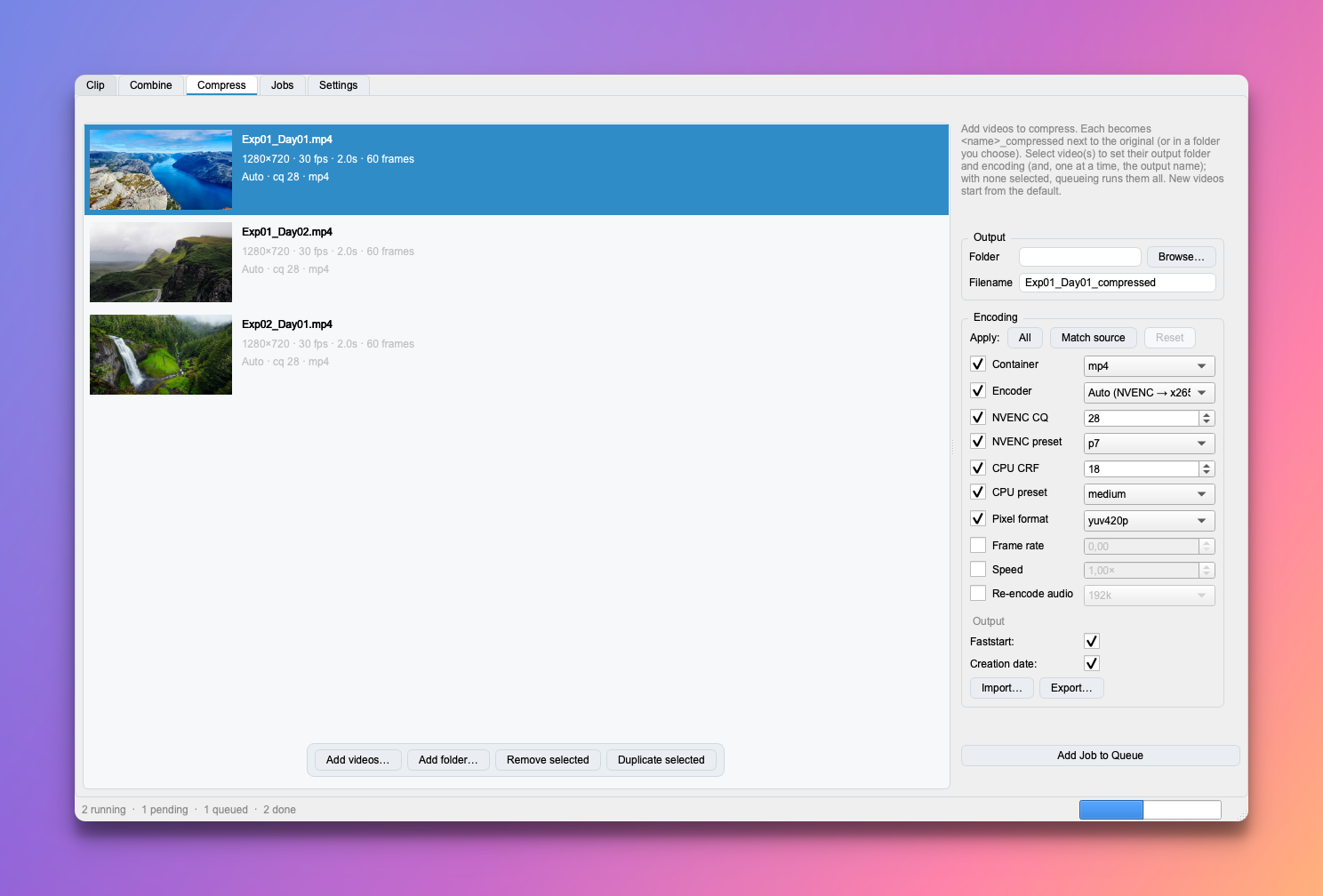
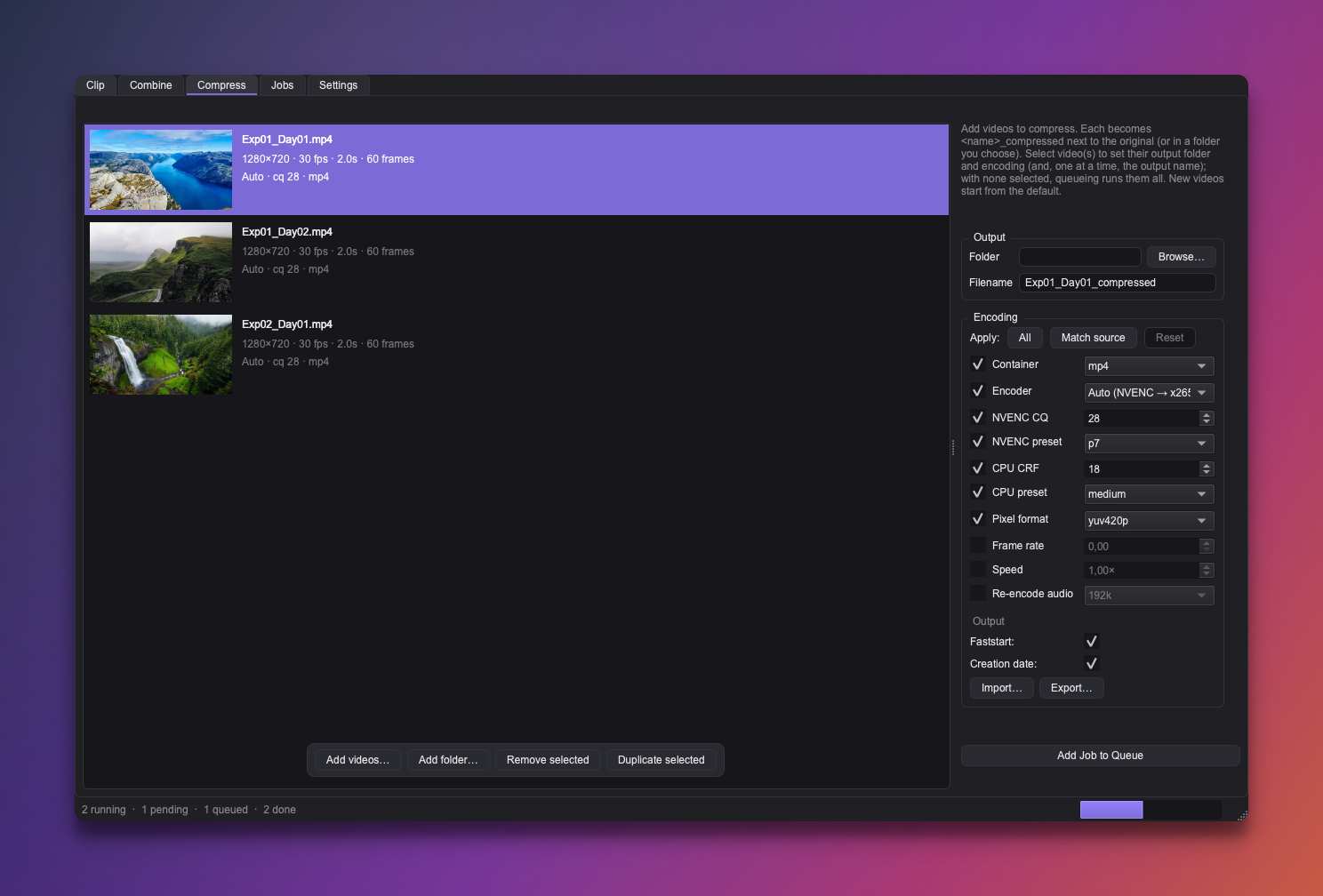
Add videos
Drop videos onto the list or use Add videos…. Each row shows a thumbnail plus the file's resolution, fps, duration, and frame count.
- Drag rows to reorder; select rows and Remove selected (or press Delete) to prune.
- Duplicate selected copies rows — useful for queueing the same source with two different qualities to compare.
Per-video settings
Click a row to edit that video's output folder, output name, and encoding in the right panel; the row shows a short summary of its settings. Selecting several rows applies folder and encoding changes to all of them at once.
- Output folder — defaults to next to the source file.
- Filename — defaults to
<name>_compressed. Because each file needs its own name, this field is only editable when a single row is selected. - Encoding — see Encoding & presets.
Compare variants
Duplicate a row, give the copy a different quality (CRF/CQ) or name, and queue both. Croppy auto-numbers any output that would clash, so nothing gets overwritten.
Queue
Add Job to Queue stages a compress job for the selected rows — or, with nothing selected, for all of them. The list stays put after queueing so you can tweak settings and re-queue. Jobs land on the Jobs tab.