Encoding & presets
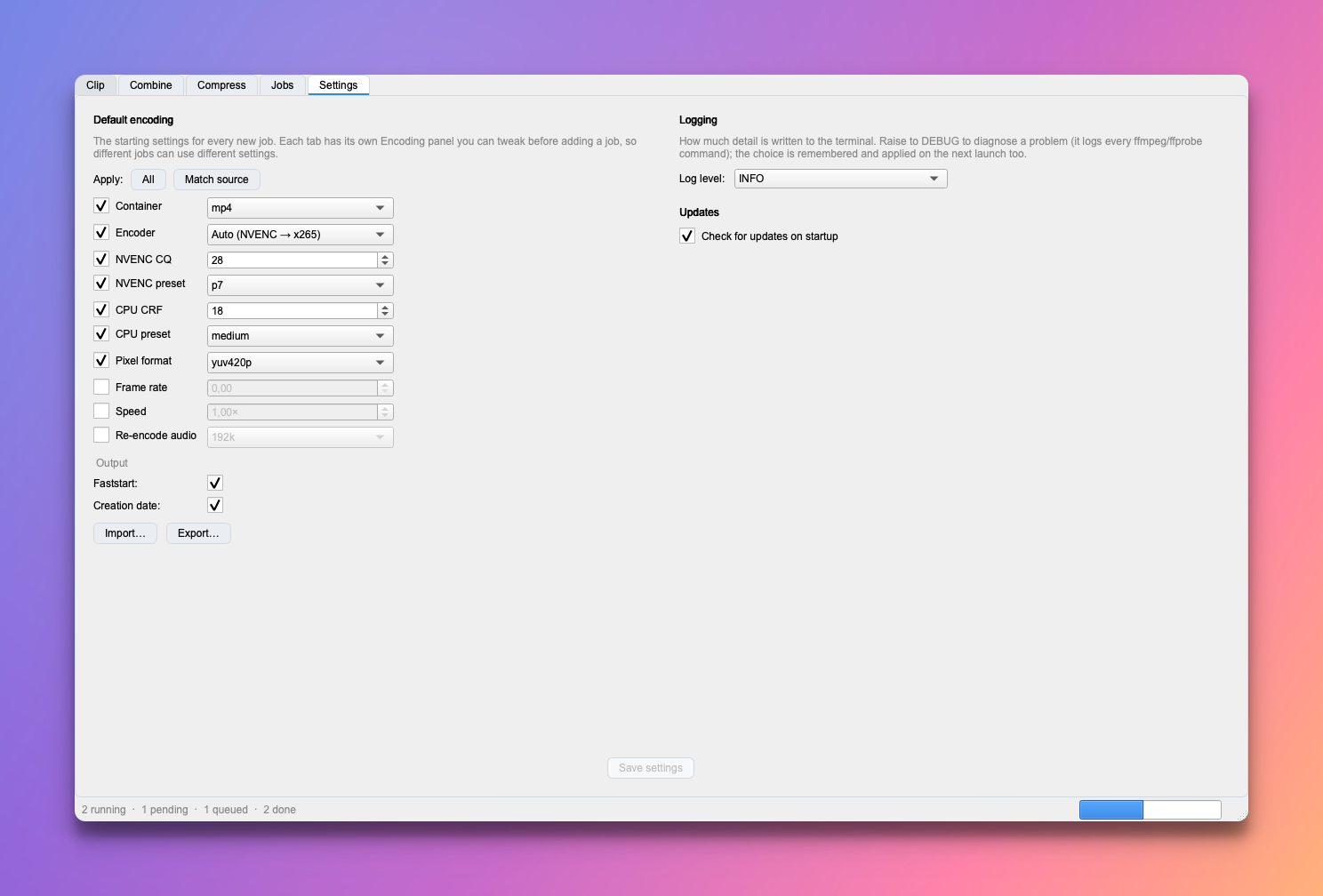
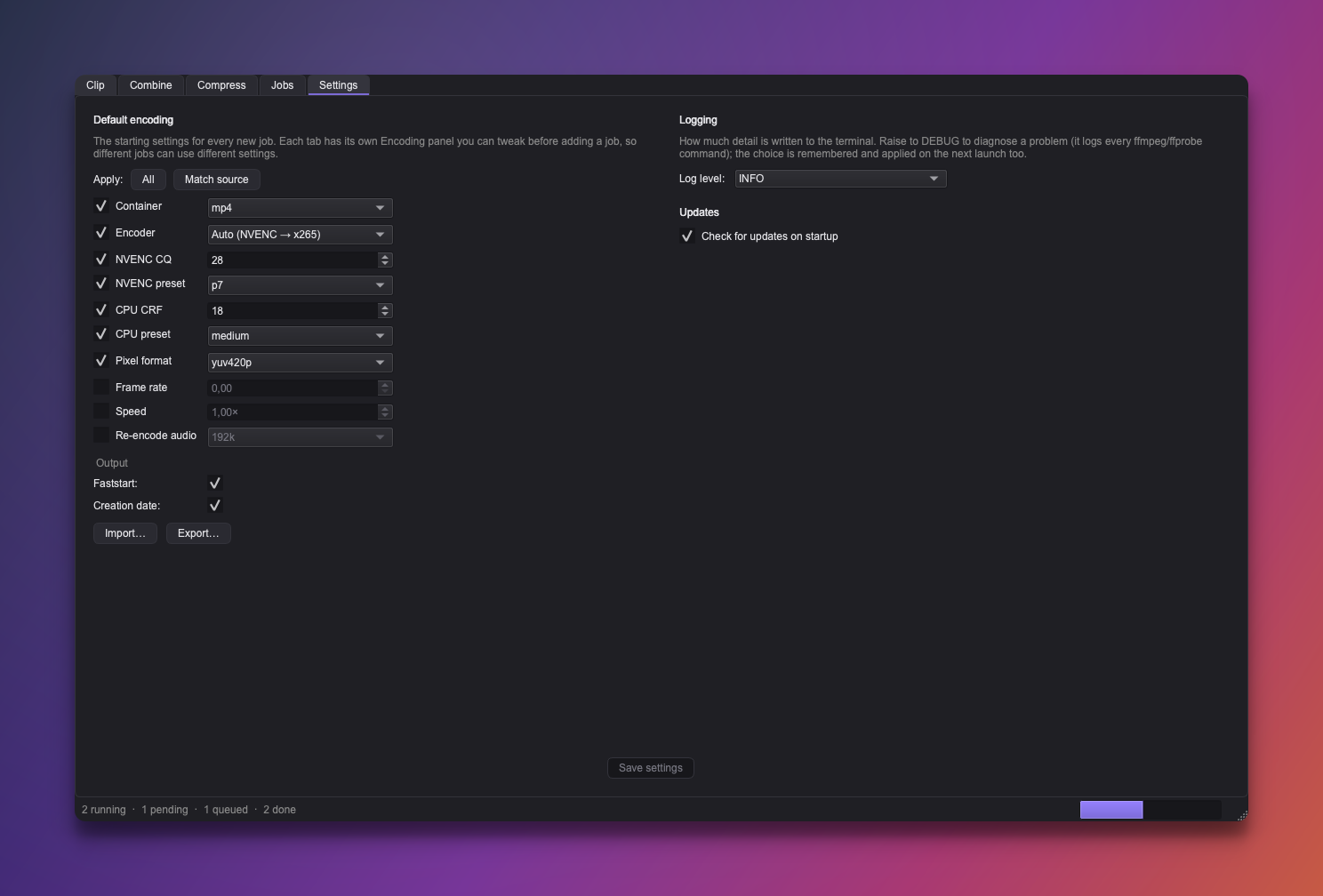
Every tab shares the same Encoding panel. The Settings tab holds the default; each thing you queue carries its own copy, so different jobs can encode differently.
Apply a setting, or inherit it
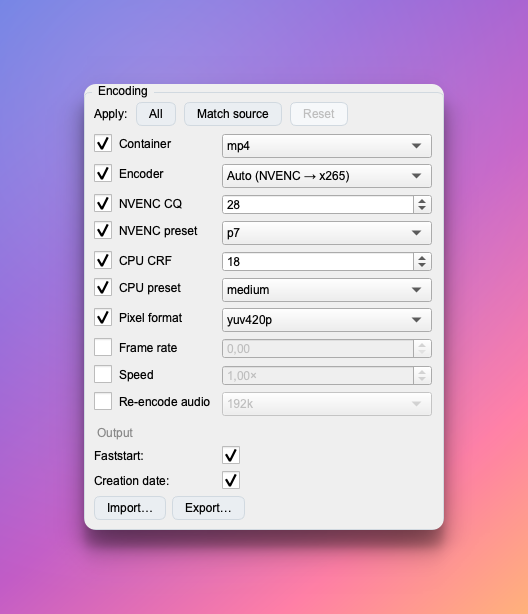
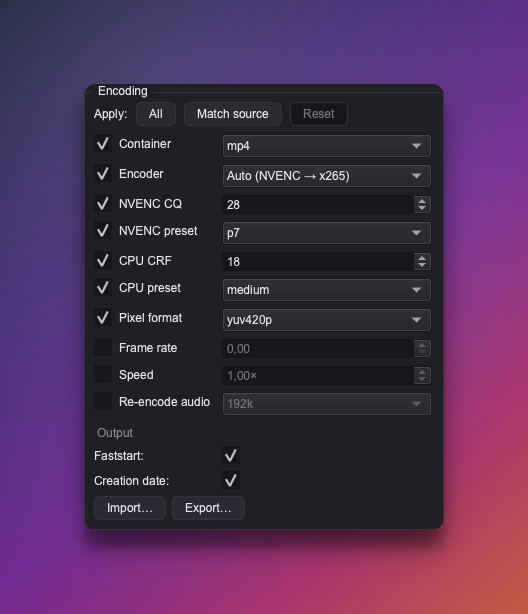
Each row has a checkbox. Checked means Croppy forces that value; unchecked means it leaves the source's value (or lets the encoder decide). So you can say "only change the container, keep everything else as the source had it" by ticking just Container.
The buttons at the top flip every row at once:
- All — force Croppy's value for every setting.
- Match source — keep the source's container, codec, pixel format, frame rate, and audio, and let the encoder pick the rest.
- Reset — restore every field to your saved default.
What 'inherit' means per setting
Disabled quality/preset/pixel-format/frame-rate/audio rows simply drop their ffmpeg flag, so the source's value (or the encoder default) is kept. A disabled Container or Encoder is taken from the source itself — its file extension, and a matching CPU encoder for its codec (h264 → libx264, hevc → libx265).
The settings
- Container —
mp4(plays everywhere),mkv, ormov. - Encoder — how the video is compressed. Auto uses your graphics card when it can (faster) and the CPU otherwise; you can also force GPU (NVENC HEVC or NVENC H.264) or CPU (libx265 / libx264).
Video looks slightly narrower in PowerPoint? Use NVENC H.264
When encoding HEVC on an NVIDIA GPU (NVENC HEVC, and so Auto on a GPU machine), heights that aren't a multiple of 32 — including the common 1080p and 2160p/4K — are padded up internally (2160 → 2176) and marked with a crop back to the real size. Most players honour that crop, but Windows PowerPoint ignores it and shows the padded frame, making the clip render a little narrower than the original. macOS is unaffected.
If you drop clips into PowerPoint on Windows, choose NVENC H.264 (or a CPU encoder). It's just as GPU-fast and codes those sizes cleanly, so the width matches the source. The trade-off is that H.264 files are larger than HEVC at the same quality.
Colours look washed-out or shifted? It's the colour range
Some cameras record full-range colour (levels 0–255) rather than the delivery-standard limited range (16–235). Several players — notably Windows PowerPoint's H.264 decoder — ignore the flag that says which, assume limited, and mis-map full-range video, giving lifted blacks and off colour.
Croppy's Limited colour range setting (on by default) normalises full-range sources to limited on output, which every player reads correctly — the same thing Adobe does on export. It's a no-op for footage that's already limited range, so you can leave it on.
- NVENC CQ — quality; lower is better/bigger (≈23 looks great, ≈28 is fine for sharing).
- NVENC preset — effort,
p1(fastest) …p7(best).
- CPU CRF — quality; lower is better/bigger (18 ≈ visually lossless, 23 is a good default).
- CPU preset — effort,
ultrafast…veryslow. - Pixel format — leave
yuv420pfor maximum compatibility.
- Frame rate — optionally resample to a lower fps (e.g. 60 → 10 keeps every 6th frame). Off keeps the source rate.
- Speed — play the output faster or slower,
0.1×–100×:2×for double speed,0.5×for slow motion,100×for a timelapse. Audio is dropped at any non-1×speed. Pair it with Frame rate for a timelapse at a sane rate (e.g.100×+30fps), rather than an enormous nominal frame rate. - Re-encode audio — on re-encodes audio to AAC at the chosen bitrate; off stream-copies the source audio untouched (fastest).
- Faststart — moves the index to the front so an mp4/mov starts playing in a browser before it fully downloads.
- Creation date — copies the source's "Date created" onto the output (Windows; a no-op elsewhere).
- Limited colour range — on (the default) converts a full-range source to the standard limited range, so colours look right in players that ignore the range flag (see the colour note below). It only acts on full-range sources; limited-range footage is left untouched. Turn it off to keep the source's range exactly.
Presets — Export & Import
Beside the panel are Import… and Export…. These read and write a small,
hand-editable .toml preset file — handy to share a configuration or keep
several around.
# croppy encoding preset
container = "mp4"
encoder = "auto"
cq = 28
applied = ["container", "encoder", "cq", "nvenc_preset", "crf", "preset", "pixel_format"]
Export/Import vs Save settings
They are different actions:
- Export… / Import… move settings to/from a file. On the operation tabs, importing applies the preset to the current item. On the Settings tab, importing loads it into the form — you still click Save settings.
- Save settings (Settings tab) persists the current form as the default every tab starts from.
The Settings tab
The Settings tab is where that default encoding lives, alongside the log level. Edit the form and click Save settings to make it the starting point for every tab.